
No matter how
good Windows
may evolve on the GUI front, Command Prompt was how it all began. So
here are some great tips you can use to make yourself comfortable while
working with the Command Prompt. like
1. Open Command Prompt in any Folder
2. Enable QuickEdit for
Easy Copy/Paste
3.Make Undeletable, Unrenamable Folders
and 8 more amazing tricks using cmd.. Have some fun and knowledge..
Let’s roll, shall we?
1. Open Command Prompt in a Folder
When you open the command prompt, it opens up in either User or System
folder depending upon whether you ran it as administrator or not. Now
the thing is, if you want to execute a file in any particular folder,
you would have to use the change directory(cd) command to navigate to
the folder which can be a problem if the directory is nested way too
deep.
To ease things you can open the folder in your Windows Explorer, hold
Shift key when you right-click in the folder and select Run command
window here to directly open the CMD prompt with the path to that
folder directly.
2. Enable QuickEdit for Easy Copy/Paste
One thing I miss the most in Command Prompt is the ability to easily
copy and paste text using the conventional Windows hotkeys. Normally,
one would have to use the right-click context menu options to copy and
paste text, but if you enable QuickEdit, you can do them using simple
shortcuts.
To enable the QuickEdit mode, right-click on the Command Prompt Title Bar and
select Properties.
In the Properties Window under the Option Tab enable QuickEdit Mode.
That’s all; you can now quickly select text by dragging your mouse
pointer. Pressing the enter key on the selected text will
copy the text to the clipboard, and a simple left click would be enough to paste the text.
3. Run Command Prompt as Admin
Many commands require you to run command prompt as administrator. When
you search for CMD in Start Menu, other than selecting Run as
administrator from the right-click menu, you can simply press
Ctrl+Shift+Enter to open it with admin privileges. This trick will work
for all the programs installed on your system.
4. See Command History
You can see last used commands in a session using the navigation
buttons, but if you would like to see a list of all the commands, you
can get it by pressing the F7 button.
Alternatively, you can use the command doskey /history to list these commands in the command prompt itself.
5. Change Command Prompt Looks
Are you bored with the conventional black-and-white looks of the command
prompt and would like to paint it different? We have already covered a
guide on
how you can customize your command prompt which you can refer to make the changes.
6. Copy Commands Output to Clipboard Directly
Sometimes one might want to copy the output from a command to clipboard,
like at times when you get an error, and you want to paste the exact
error in email or while chatting with someone.
To store a command output to a clipboard add the command | clip at the end of the command. For e.g. Dir /p | clip
7. Drag and Drop Files to Change Path
If you are already in command prompt, and you want to copy the exact
path to a folder or file to run the file or change the present
working directory, you can simply
drag and drop the file or the folder on the command prompt.
The path of the dropped file or folder will show up in quotes.
8. Run Commands Simultaneously
You can put && between two commands and execute them one after
another. The command on the left will execute first followed by the
command on the right of the double ampersand.
9. Get Help for Command
Well let’s say you know about a command, but you are not sure how it
works. Not a problem, all you need to do is suffix the command with /?
and execute it. If the command is valid, the command prompt will give
you all the
information related to it.
10. Watch Star Wars in ASCII

For all my nerdy friends who are diehard fans of Star Wars, you can
actually watch the Star Wars Episode IV movie in the command prompt.
Though it would be in ASCII, it will be fun. To start the movie, open
command prompt, type in telnet towel.blinkenlights.nl. and press enter.
11. Make Undeletable, Unrenamable Folders
Click on Start.
Click on Run. Type in "cmd" without quotes.
In the Command Prompt Window that opens, type the name of the drive you
wish to create your folder in the format <drive-name>: and press
Enter. e.g. If you wish to create the undeletable folder in D drive,
type "D:" without the quotes. Note that the folder cannot be created in
the root of C:/ drive (if C: is your system drive).
Type this command- "
md con\" or "
md lpt1\" without the quotes and press Enter. You can choose any of the keywords given above as the name of your folder.
Now Windows will create an undeletable, unrenamable folder in the drive
you entered in Step 3. However the folder can be renamed to another
keyword using Windows Explorer.
Deleting the Folder
Although it is not possible to manually delete the folder, you can delete the folder by typing "
rd con\" or "
rd lpt1\" in Step 4 instead of "md con\" or "md lpt1\".
Windows Compatibility: This works on Windows XP,
Windows Vista, Windows 7 and Windows 8.
Try it yourself to create one such folder which can neither be deleted nor be renamed.
12.Know your IP address, DNS Server's address and a lot more about your Internet Connection
For Windows XP Users, there’s no need to select Run as Administrator,
all you need to do is Click on Start and then Run and type cmd in the
Open box and press enter.
For Windows Vista and Windows 7 Users, click on the Windows Start button
and type cmd, right click cmd on the top and select Run
Administrator.Command Prompt can even let you know your IP address. Just
type
ipconfig/ all in the
command prompt and press Enter. Along with your IP address and DNS
servers, command prompt will also return a ton of information like your
host name,
primary DNS suffix, node type, whether IP Routing ,Wins Proxy, and DHCP
are enabled, your network adapter's description, your physical (MAC)
address etc


 8:10 AM
 salligaramu

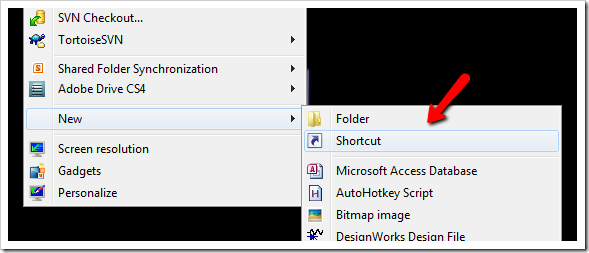 3. Click on “Browse”, navigate to your file or folder for what you want to create command. For example:
 4. Now click on “Next” and type any name for your shortcut. You can
choose any name as per your choice and click on "OK" and on "Finish".
4. Now click on “Next” and type any name for your shortcut. You can
choose any name as per your choice and click on "OK" and on "Finish". Posted in: tricks & tips


 --->
---> 
 -->
-->


